Last month I changed my phone PIN, and within two days I forgot it. I was standing at a small shop, the shopkeeper was waiting, and I was staring at my own lock screen like it belonged to someone else. After a few wrong tries, the phone made me wait — and I started thinking: why should a password be something I have to memorise at all?
A week later a friend showed me something that answered that question in a very simple way. His lock screen did not ask for a PIN he had chosen. It asked for the time. At that moment the clock said 07:42, so the password was 0742. A minute later, it would have been 0743. Nobody could guess it by watching him once, because by the time they tried it, the answer had already changed.
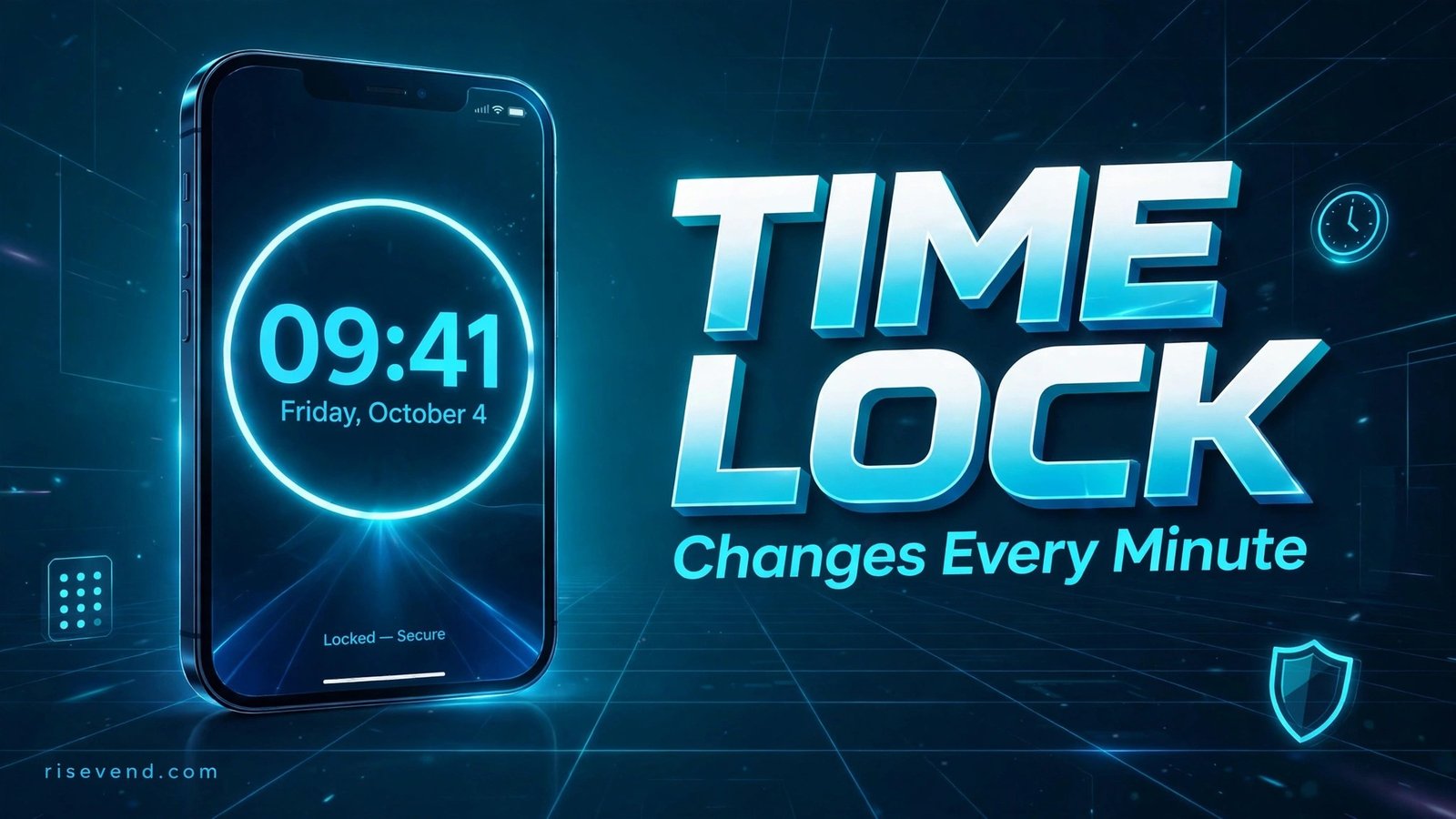
That idea is called a Time Lock, and the app behind it is Screen Lock – Time Password. It gives Android phones an iPhone-style lock screen where your current time becomes your password, changing every single minute on its own.
How a Time Password Actually Works
The idea sounds strange the first time you hear it, but in practice it is very easy. When you switch on the Current Time lock, the app simply reads the clock on your phone and uses those four digits as the code. If the time is 01:47, your PIN is 0147. If the time is 09:05, your PIN is 0905. You never set a secret number, so there is nothing to forget and nothing to write down on a piece of paper.
After a day or two it feels natural. You glance at the time — which you were going to do anyway — and type those digits. A friend who watches you unlock at 03:20 learns 0320, but at 03:35 that code is already history.
Quick Facts About the App
- App name: Screen Lock – Time Password
- Price: Free
- Rating: Around 4.3 stars, from 156,578 ratings on the Play Store
- Main idea: Your phone’s current time is your lock screen password, changing every minute
- Style: iPhone-style lock screen for Android phones
- Extra tools inside: Vault for hiding photos and videos, and a Private Browser
More Than One Way to Lock
Current Time is the headline feature, but it is not the only lock type in the app, and that flexibility is what makes it work for different people. If you want something even harder to guess, you can combine the time with a PIN you choose yourself.
Here is what each option means in plain words:
- Current Time: The time itself is the code. At 06:30, the code is 0630.
- PIN Passcode: A normal fixed PIN, for days when you just want the classic way.
- PIN + Minute: Your PIN followed by the current minute, so the code changes every minute even though half of it stays yours.
- PIN + Current Time: Your PIN plus the full current time — longer, and much harder for someone else to copy.
- PIN + Day: Your PIN plus the day of the month, which changes daily.
- PIN + Hour: Your PIN plus the current hour, which changes every hour.
I started with plain Current Time, then switched to PIN + Minute: the first half is mine, the second half moves with the clock. Start simple and only add a PIN part if you need it — a lock you find annoying is a lock you will switch off.
Setting It Up, Step by Step
The setup is short, and most of it is just picking how you want things to look:
- Install the app and open it. Give it the permissions it asks for to work as a lock screen — without those, it cannot replace your normal lock screen.
- Choose your lock type. Start with Current Time. You can change this later in the settings, so do not stress over the first choice.
- Pick your time format. Choose 12-hour or 24-hour format, whichever matches the clock you are used to reading. This matters, because your password follows the format you pick.
- Set your wallpaper. You can use one of the HD wallpapers inside the app or pick a photo from your own gallery. Your lock screen should feel like yours, not like a demo phone.
- Adjust the look. Try the parallax effect, and change the sliding text if you want — you can put your own name or a short line there instead of the default text.
- Test it before you rely on it. Lock your phone, wait a minute, then unlock it with the new time. Do this two or three times. If something feels wrong, fix it now, not when you are in a hurry outside.
That testing step caught my own small mistake: I had set 24-hour format in the app while my phone clock showed 12-hour time. Once both matched, everything worked. Small detail, big difference.
The iPhone Look on an Android Phone
One thing that surprises people is how the lock screen looks. It is styled like an iPhone lock screen — big clock, clean keypad, smooth sliding text — but it runs on an Android phone. If you like that clean style, you get it without changing phones.
The look is not just for show. A big, clear clock means you always know your code at a glance, and sliding text carrying your name helps if you ever leave your phone somewhere. The parallax effect adds a little depth when you move the phone. You can also switch unlock sound and vibration on or off, as you prefer.
Two Bonus Tools: Vault and Private Browser
Beyond the lock screen, the app has two extra tools that are worth knowing about, because they solve two different privacy problems.
The Vault for photos and videos
The Vault is a private space inside the app where you can hide photos and videos, so they do not sit in your normal gallery for anyone to swipe through when they borrow your phone. We all have pictures we do not want a curious friend scrolling through — family photos, screenshots, personal documents — and the Vault keeps those separate, behind the same protection.
A Private Browser for quiet browsing
The Private Browser is for browsing without leaving the usual trail in your main browser — useful for checking a price or looking up a gift for someone who also uses my phone, so the surprise stays a surprise.
Because the app uses little memory and battery, it does not feel heavy on the phone while doing all this.
Where a Time Lock Helps in Real Life
Here are the moments where this lock earned its place on my phone.
First, when someone borrows my phone for a call. They finish, the screen locks again, and any code they saw has already changed while they were talking. Second, in a shared room or office, a glance at a fixed PIN is enough — but a glance at a time password gives them a code that expired a minute later. Third, for people who genuinely forget passwords: my mother changes her PIN, writes it on paper, loses the paper, and the cycle starts again. With a time lock there is nothing to write down; the clock remembers for you.
Common Mistakes to Avoid
- Mixing up 12-hour and 24-hour formats. Make both match before you judge the app.
- Forgetting the time changes every minute. Glance at the clock right before you type, not two minutes earlier.
- Choosing a complicated lock on day one. Start with plain Current Time; you can make it stronger later.
- Skipping the test. Lock and unlock a few times at home before trusting it outside.
- Leaving the default look untouched. Your own wallpaper and name make the lock screen yours.
- Expecting it to replace everything. It protects your lock screen — it is one good layer, not magic.
My Final Thoughts
I did not expect a lock screen to change how I think about passwords, but this one did. For years I treated a password as a secret I had to carry in my head, and I kept failing at it — forgetting it, reusing it, or picking something too easy just to remember it. A Time Lock flips that around: the secret moves on its own, every minute, and all you have to do is read the clock.
Screen Lock – Time Password is free, sits at around 4.3 stars from more than one hundred and fifty thousand ratings, and adds an iPhone-style lock screen, a Vault, and a Private Browser on top of that moving password. If you forget PINs or worry about shoulder surfers, try the Current Time lock first and give it a day. You may find, like I did, that the hardest part is remembering why you ever trusted a password that never changed.