Every night my phone goes through the same boring routine. I plug in the charger, the screen lights up for a second, and all I see is a plain battery icon slowly filling up. It does the job, but it looks like nothing. After a long day, that tiny grey icon is the last thing I look at before I sleep, and it never once made me smile.
A few weeks ago I had opened the Play Store to download a small tool that checks whether my charger is really fast charging or just pretending. That tool answered my speed question, but it left a different question in my mind. If my phone can show me live charging numbers, why does the charging screen itself have to look so dull? I wanted the moment I plug in my phone to feel a little more personal, a little more mine.
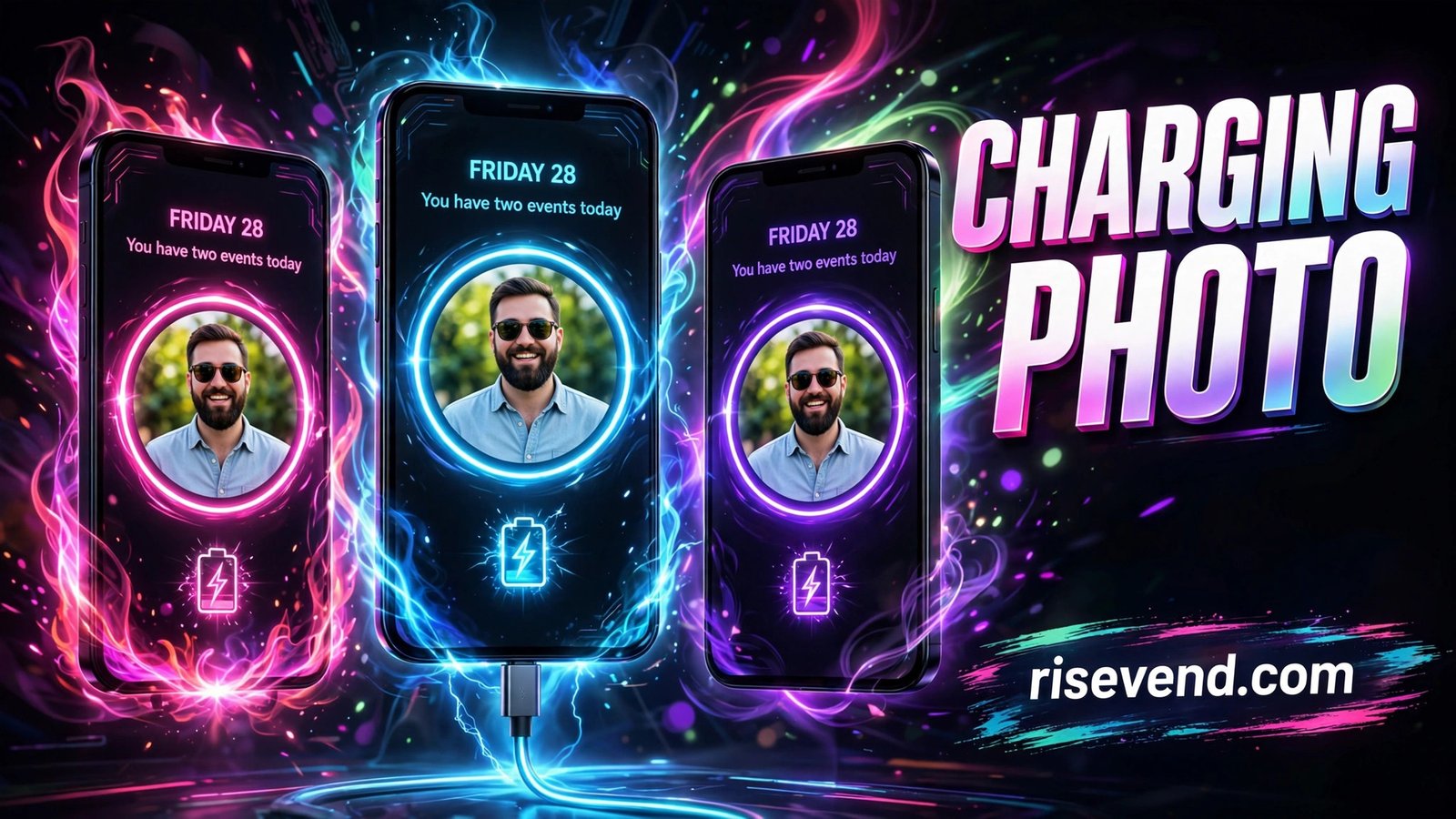
That search led me to an app called Batix, full name Batix (Charging Photo). It is free, and it does one simple thing very well. It turns your plain charging screen into a glowing animation built around your own photo. When you plug in your charger, the animation starts on its own, with bright rings and light effects around a picture you chose yourself. The first time I saw my own photo light up with neon rings, I waited a few extra seconds just to watch it.
Before I go further, one honest point. Batix changes how your charging screen looks. It does not charge your phone faster, it does not fix a weak charger, and it does not replace your battery. If anyone tells you an animation app will speed up charging, do not believe it. This app is about style and a useful full charge alarm, not about charging speed.
Why a Photo on the Charging Screen Feels Different
We look at our phones dozens of times a day, but the charging screen is a moment we usually ignore. We plug in, we walk away, and we come back later to a full battery. Putting your own photo there changes that small moment completely. For me it was a photo from a family trip. Seeing it glow on the charging screen, surrounded by soft light rings, felt like my phone was greeting me instead of just showing a battery.
It also works as a quick glance tool. From across the room, the bright animation tells me at once that the charger is connected. If it is not playing, I know right away that something is wrong with the cable or the plug.
What Batix Actually Does
The main idea is simple. You pick a photo, you pick an animation theme, and the app shows that combination every time you plug in your charger. The themes include neon styles, circle rings, colourful energy effects, and quiet minimal looks for people who do not like bright colours. There are ultra HD themes too, so the animation looks sharp even on a large phone screen.
Along with the animation, the app shows basic battery information while your phone charges, such as the battery percentage and the charging status. It also has a full charge alarm, which tells you when the battery reaches full. That alarm is the feature I used the most, because it stops me from leaving my phone plugged in and forgotten.
Customisation is where the app earns its place. You can change the size, position and opacity of the animation, and try different effects until the result feels right. The app is lightweight and smooth, so it plays without making your phone feel slow.
Quick Facts About the App
- App name: Batix (Charging Photo)
- Price: Free
- Rating and downloads: Not shown clearly on the Play Store page I checked, so I will not guess a number here
- Main job: Showing your own photo with a glowing charging animation when you plug in your charger
- Themes: Neon, circle, colourful energy, minimal and ultra HD themes
- Also includes: Auto start on plugging in, battery percentage and charging status, full charge alarm, animation size, position and opacity settings
Setting Up Your Own Photo, Step by Step
Setting this up takes only a few minutes. Follow these steps in order.
- Install Batix from the Play Store and open it. Allow the permissions it asks for, because without them the animation will not appear when you plug in your phone.
- Pick your photo first, before you pick a theme. Choose a clear photo where the main subject is easy to see. A dark or busy photo can hide the animation, so a clean photo with good light works best.
- Choose an animation theme that suits the photo. Try the neon theme first if you like bright colours, or the minimal theme if you prefer something calm. Pick one you can live with every day, not just one that looks good in a preview.
- Adjust the size, position and opacity. Move it until it sits where you like it, make it smaller if it covers the photo, and lower the opacity if the glow feels too strong.
- Turn on the full charge alarm. This is the step most people skip, and it is the most useful one. Set it so your phone tells you when the battery is full, then you can unplug on time.
- Plug in your charger and watch it once from start to finish. Check that your photo is clear and the battery percentage shows correctly.
Neon, Circle or Minimal: Picking a Theme That Suits You
The theme you pick says a lot about how you like your phone to look. The neon themes are bold and bright, with glowing pink, cyan and purple rings that stand out even in a dark room. They are fun, and they are the ones my younger cousin loved at once when he saw my phone charging on the table.
The circle themes are calmer. A soft ring grows around your photo as the battery fills, which feels neat to watch. The minimal themes keep things quiet with soft light and simple shapes. I started with neon, then switched to a softer circle theme for night time, because bright neon at midnight felt too much when I was trying to sleep. Pick the one you will still enjoy after a week of daily charging.
Mistakes That Ruined My First Try
My first mistake was picking a photo that was too busy. It was a group photo from a picnic, with lots of faces, trees and colours in the background. Once the rings were added on top, the whole screen looked crowded. Switching to a single clear photo fixed it at once.
My second mistake was setting the animation far too big. A huge animation covered most of the photo. Making it smaller brought the balance back. The photo stayed the star, and the animation became the frame around it.
My third mistake was turning the opacity all the way up and leaving the full charge alarm off. The glow lit up my whole room at night, and my phone stayed plugged in for hours after it was full. Lowering the opacity and turning the alarm on solved both problems.
How This Fits My Daily Charging Routine
Charging is now a small ritual in my day instead of a boring wait. In the evening I plug in my phone, I see my favourite photo light up, and I know the charger is connected properly. When the full charge alarm sounds, I unplug and move on. It is a tiny change, but it made a daily task feel a little more pleasant.
It fits the same habit as when I download small customisation tools that change how my phone feels every day, like a fresh keyboard theme or a new lock screen style. Together they make the phone feel personal instead of factory made. Small touches, but they add up.
Should You Give Your Charging Screen a New Look?
After a couple of weeks with Batix, my charging screen no longer feels like a blank waiting time. It feels like a small personal corner of my phone, with a photo I love, a soft glow I chose myself, and an alarm that tells me when to unplug.
Batix (Charging Photo) is free, it starts on its own the moment you plug in your charger, and it gives you neon, circle, colourful and minimal themes with control over size, position and opacity. It will not make your phone charge faster, and it will not fix a faulty charger, but if your charging screen has bored you for months, it is a fun way to make it yours. Pick a clear photo, try a neon theme first, adjust it until it feels calm enough for night time, and turn that full charge alarm on.